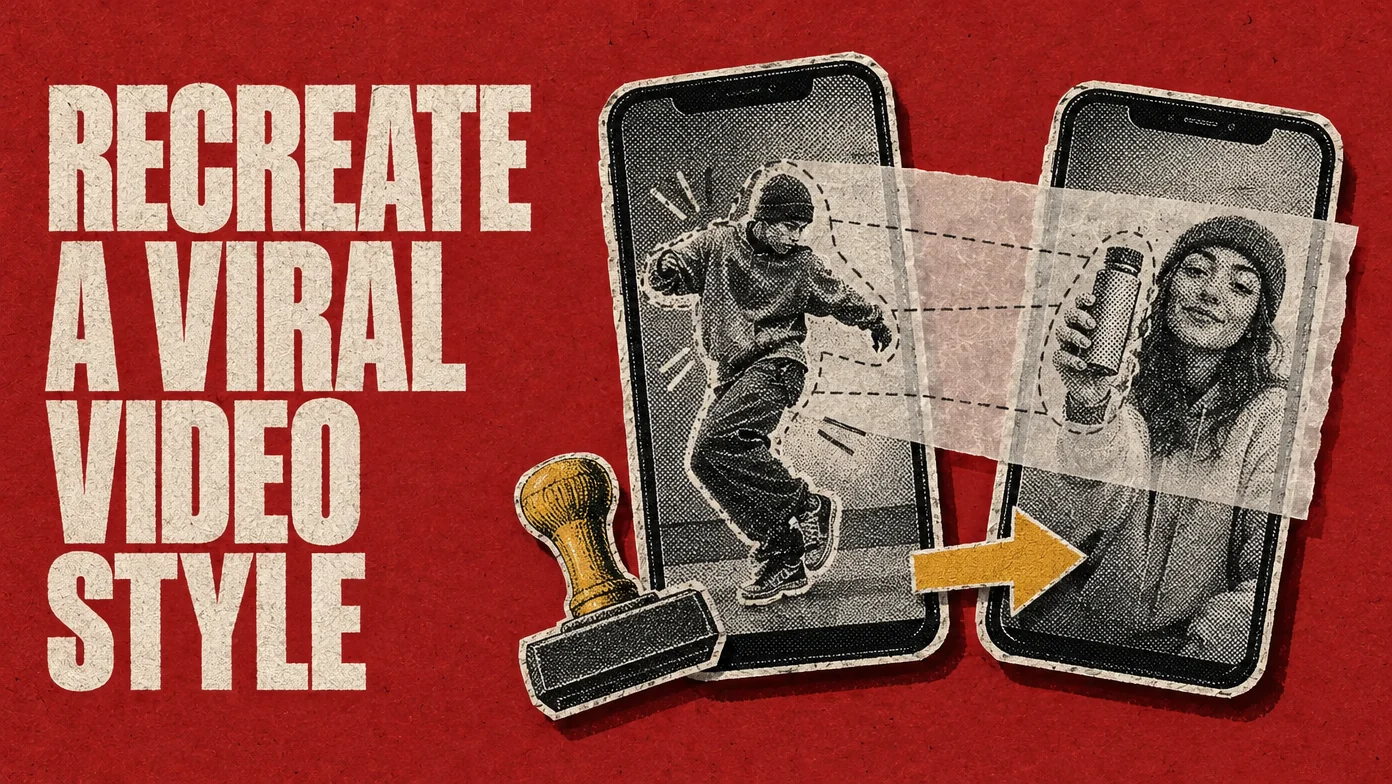
When a video takes off, everyone tries to copy it. Most copies fall flat for a simple reason: they copy the wrong part. A dance trend lives in its movement. A UGC ad lives in its first second and its proof shot. A talking-head clip lives in its cuts and captions. Before you open any tool, decide which of those you actually want.
This guide walks through five ways to recreate a viral video, from free templates to AI remakes. For each one you’ll see what it keeps from the original, what you have to bring, and where it tends to go wrong. The before-and-after frames come from the demos on our Viral Video Cloner page, so you can check exactly what changed and what didn’t.
Key Takeaways
- Name the part you want to keep (the edit, the motion or the look), then pick the method. The tool comes last.
- Templates and shot-by-shot reshoots cost nothing but your time, and every frame is yours. You do have to film it all.
- Copying the edit works on footage you already have. The reference supplies cut rhythm, captions, graphics and music placement; your footage supplies everything on screen.
- AI remakes keep the original’s movement and camera. Object swap changes one named thing and leaves the rest of the frame alone. Motion transfer rebuilds the whole frame from your photos.
- Borrow structure, not material. Replace any footage, music or voice you don’t have the rights to.
First, Decide What You Want to Keep
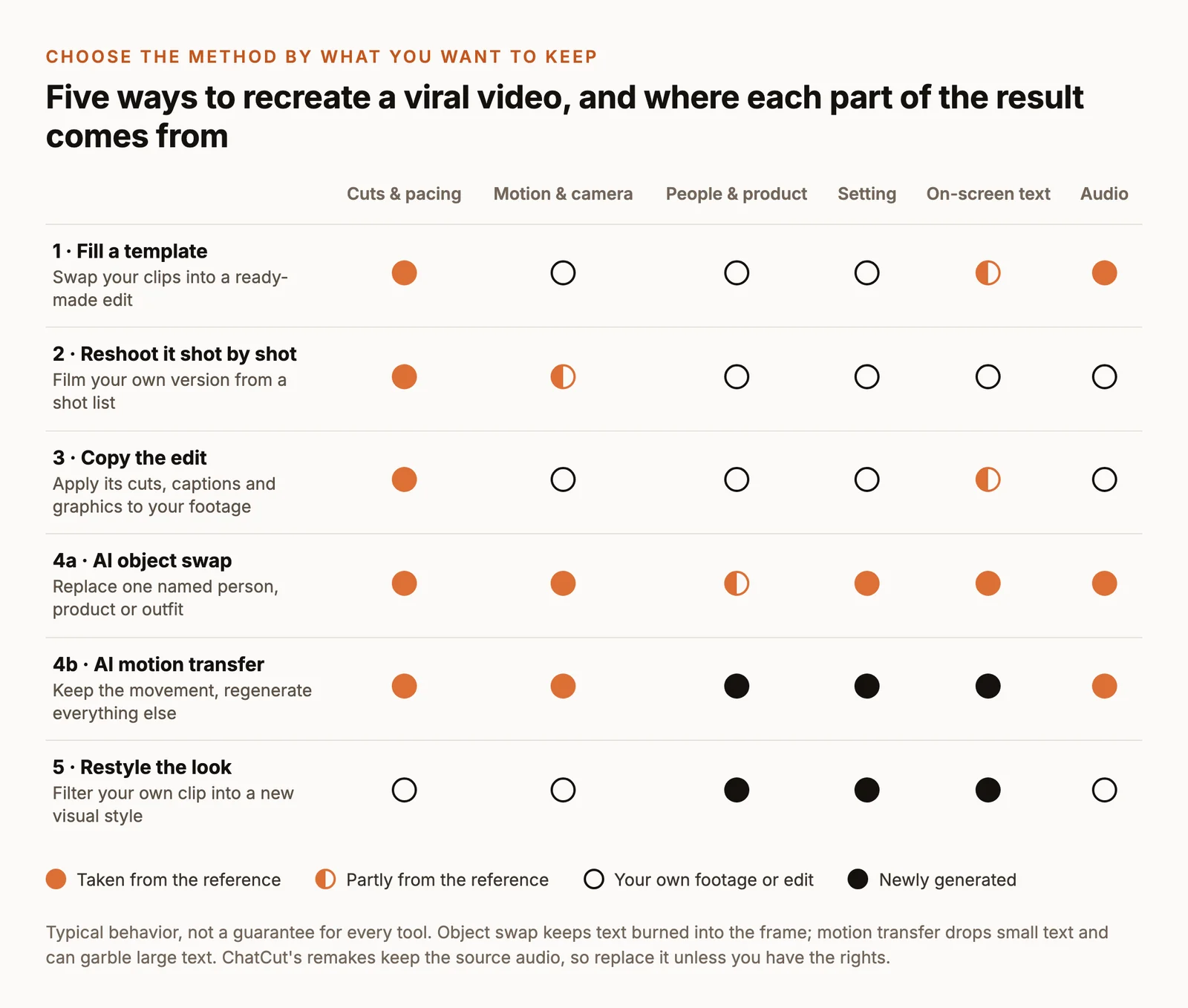
Every viral video is a stack of decisions. Recreating one means keeping some of them and replacing the rest. Three questions narrow the choice quickly:
- What makes it work? If the video still works with the sound off, the value is probably in the movement or the visual idea. If it falls apart on mute, it’s in the script, the voice or the captions.
- What do you have? Your own footage, photos of a person or product, or only an idea. AI remakes need photos; edit transfer needs footage; reshoots need a camera and a free afternoon.
- What must be yours? A brand usually needs its own product and its own face on screen. A creator joining a trend usually needs their own performance.
Then match it to a method:
| You want to keep | Use | You bring |
|---|---|---|
| The cuts, captions, text and music timing | Template (1), reshoot (2) or edit transfer (3) | Your clips or footage |
| The exact movement and camera move | AI remake (4) or a careful reshoot (2) | Photos of the new person, product or place |
| The look: color, texture, an animated finish | Restyle (5), or motion transfer with a style reference | Your clip, or a style image |
Step 1: Break the Reference Down Before You Touch a Tool
Whatever method you choose, write down what the reference does, second by second. It takes ten minutes and saves hours of re-edits, because you stop copying details that don’t matter and start copying the few that do.
Here is a breakdown of an 8-second UGC ad from our demo set:
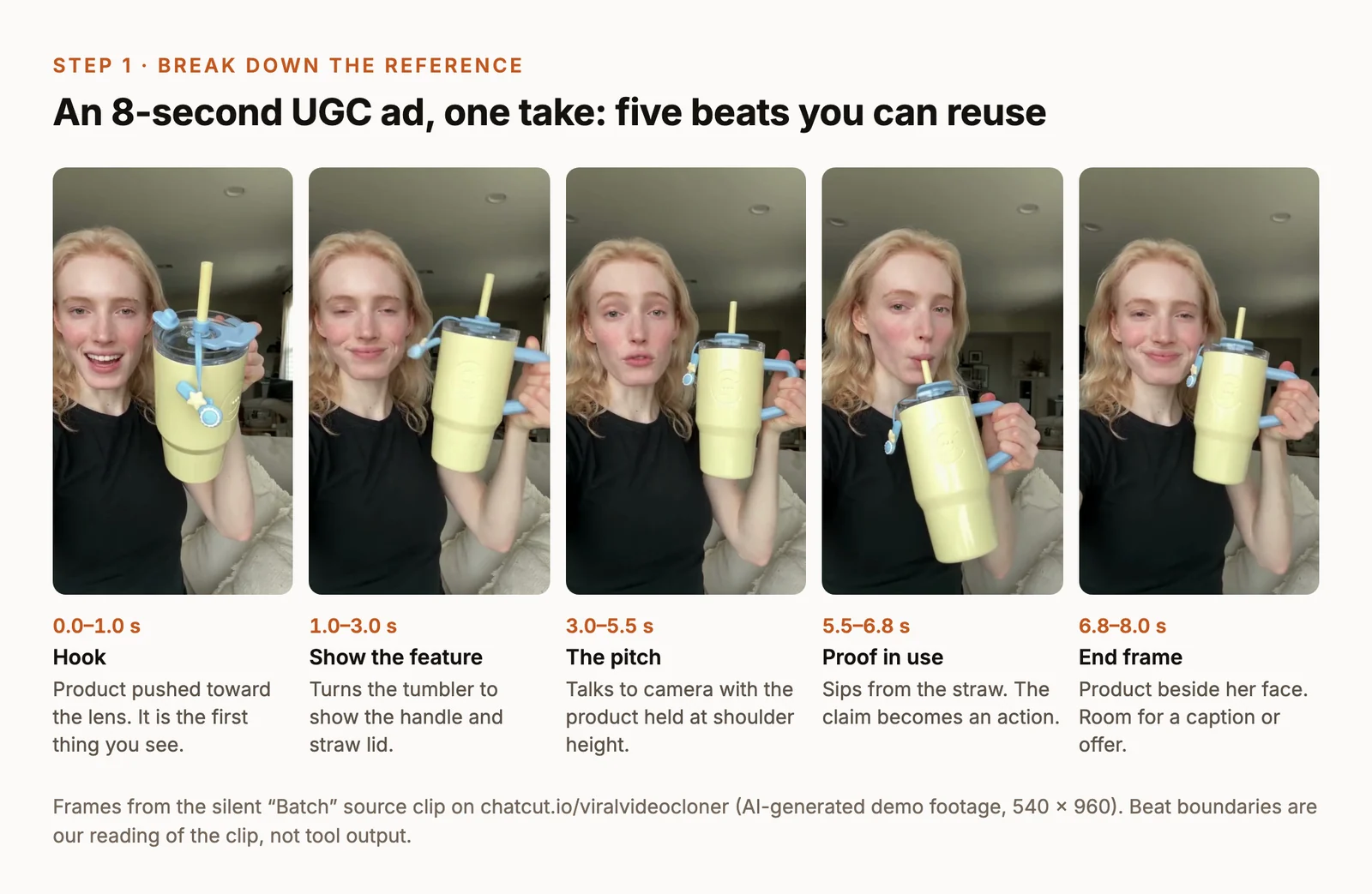
| Time | What happens | Camera and edit | The job it does |
|---|---|---|---|
| 0.0–1.0 s | Product pushed toward the lens | Handheld selfie, no cut | Hook: the product is the first thing you see |
| 1.0–3.0 s | She turns it to show the handle and straw lid | Same take | Shows the feature |
| 3.0–5.5 s | Talks to camera, product at shoulder height | Same take | The pitch |
| 5.5–6.8 s | Sips from the straw | Same take | Proof in use |
| 6.8–8.0 s | Holds it beside her face and smiles | Same take | End frame, room for a caption or offer |
Two things stand out. There are no cuts at all, so a fast-cut template would be the wrong tool. And the product appears before the face: the hook is the object, not the person. Those are the details worth copying. Her exact words are not.
A few habits make the breakdown faster:
- Watch it muted first, then with sound. You’ll see which beats carry the video on their own.
- Count the cuts. One take, five quick cuts and thirty quick cuts call for very different methods.
- Note when text appears and how long it stays. Text on screen for under a second is decoration; text that stays three seconds is part of the message.
- Mark the payoff. Most short videos have one moment everything builds to. In this ad it’s the sip at 5.5 seconds.
Method 1: Fill a Template
If the video was built from a template, the quickest route is to use the same template. In CapCut, template links open in the mobile app; you replace the clips in each slot, adjust the crop, and export. The timing, transitions and effects come with the template. CapCut’s own template guide covers the steps.
Works well when the original is a template and your clips fit its slots.
Watch for two limits. The slot lengths are fixed, so a 0.4-second slot can’t hold a 2-second action. And a template only exists if someone built one. A finished MP4 is flattened: there are no layers left to extract. Tools that save “templates from a video”, such as Creatify’s template feature, save projects that were built in their own editor, not an arbitrary file you downloaded.
Method 2: Reshoot It Shot by Shot
Use your breakdown as a shot list and film your own version. This is the oldest method and still the most reliable, because every frame is yours.
- Match the framing. Note the camera height, the distance, which hand holds the product, where the eyes are in the frame.
- Time each beat. Play the reference on a second screen while you film so your actions land at the same moments.
- Film two or three takes per beat, even in a one-take video. You’ll want options for the hook.
- Cut against the original. Put the reference on a track above yours, muted and scaled into a corner, and align your beats to it. Delete it before you export.
Works well when the idea is physical and simple (a gesture, a reveal, a product demo) and you want full rights to the result.
Watch for stunts, locations and multi-person choreography. If you can’t film it, method 4 is the honest alternative.
Method 3: Copy the Edit Onto Your Own Footage
This is what most “make it look like this video” requests really mean. The reference supplies the editing: shot lengths and cut rhythm, transitions, caption and title style, motion graphics, how B-roll is used, music and sound effects, color. Your footage supplies the content. Nothing new is generated, so nobody’s face or product changes.
The rule that makes this work: match by function, not by timestamp. If the reference drops a full-screen title on its first big claim at 0:02, put your title on your first big claim, wherever it lands in your footage. Copying timestamps produces captions over the wrong words and graphics over the wrong shots.
In any editor, the process is the same:
- List each device the reference uses and the job it does: a hook zoom, a list graphic for three points, a highlighted keyword, a B-roll cutaway on every example.
- Rough-cut your footage first, so you know where your hook, list, example and payoff are.
- Apply each device where your footage has the same job, and skip devices your content has no place for.
- Compare the two side by side at the same moments and fix what drifts: caption size, font weight, the position of the speaker in frame.
In ChatCut you can hand both videos to the agent. It breaks down the reference (titles, captions, layout, transitions, music), cuts your footage, applies the packaging at the matching moments, and leaves every piece editable on the timeline. A prompt that works:
Other tools take a similar approach. Sparki’s Copy Style takes an uploaded or linked reference plus your footage and adapts pacing, transitions, captions and B-roll timing. Captions’ AI Edit applies curated edit styles rather than cloning a reference you supply.
Method 4: Remake It With AI
Sometimes the movement is the point: a dance, a stunt, a product spun through the frame, a camera move you can’t afford. Generative remakes keep that movement and camera and render new content into it. There are two quite different ways to do it, and choosing the wrong one is the most common reason a remake looks off.
Object swap: change one thing, keep the rest
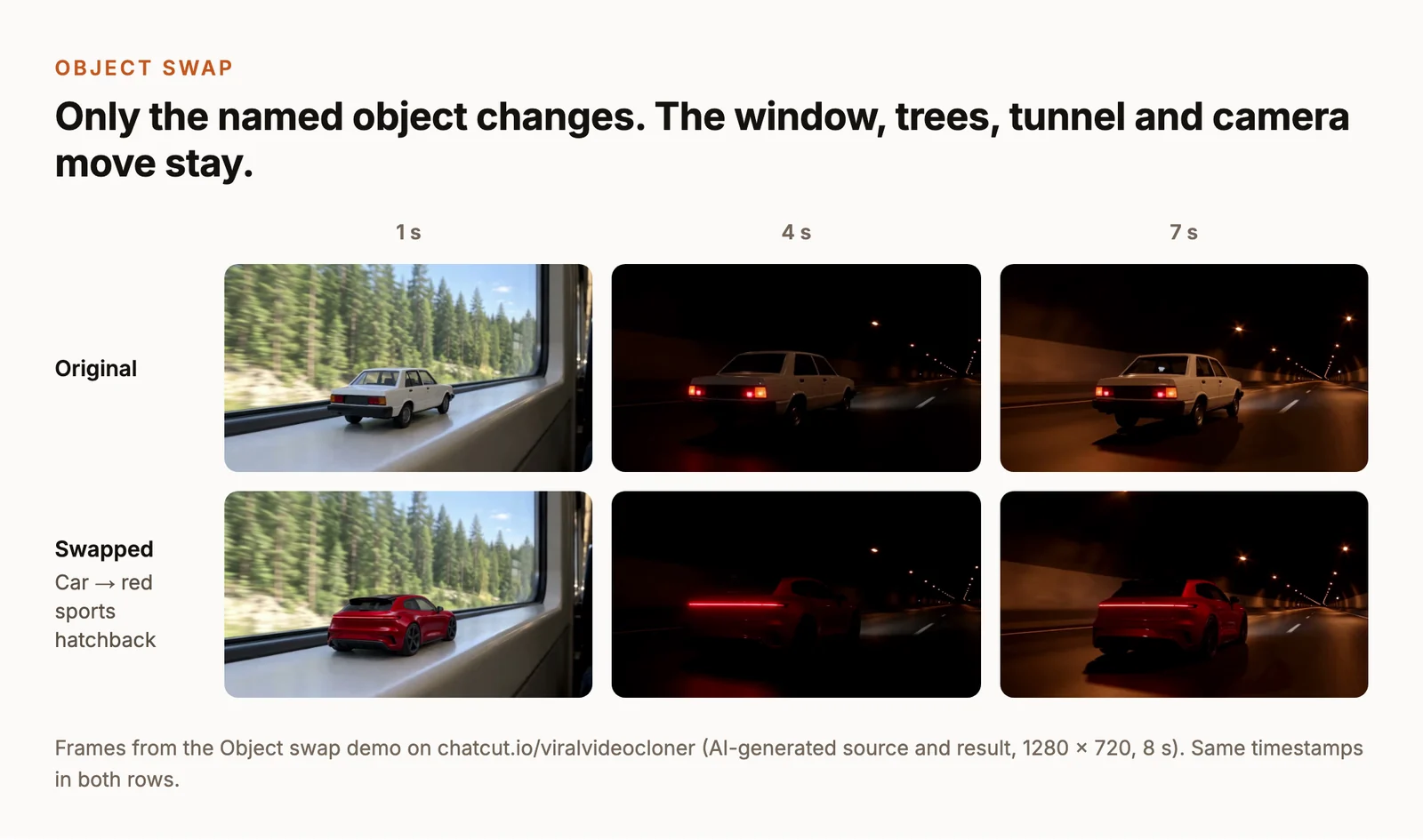
Object swap edits the original video directly and replaces only what you name: a person, a product, an outfit. Everything else stays pixel for pixel, including the background, other people, and any text burned into the frame.
That last point cuts both ways. Captions and brand names you want to keep survive. So does a watermark, so start from a clean source. And when you swap a real person, the original’s face shape and bone structure tend to show through, which limits how closely the result can look like you.
Motion transfer: keep the movement, rebuild the frame
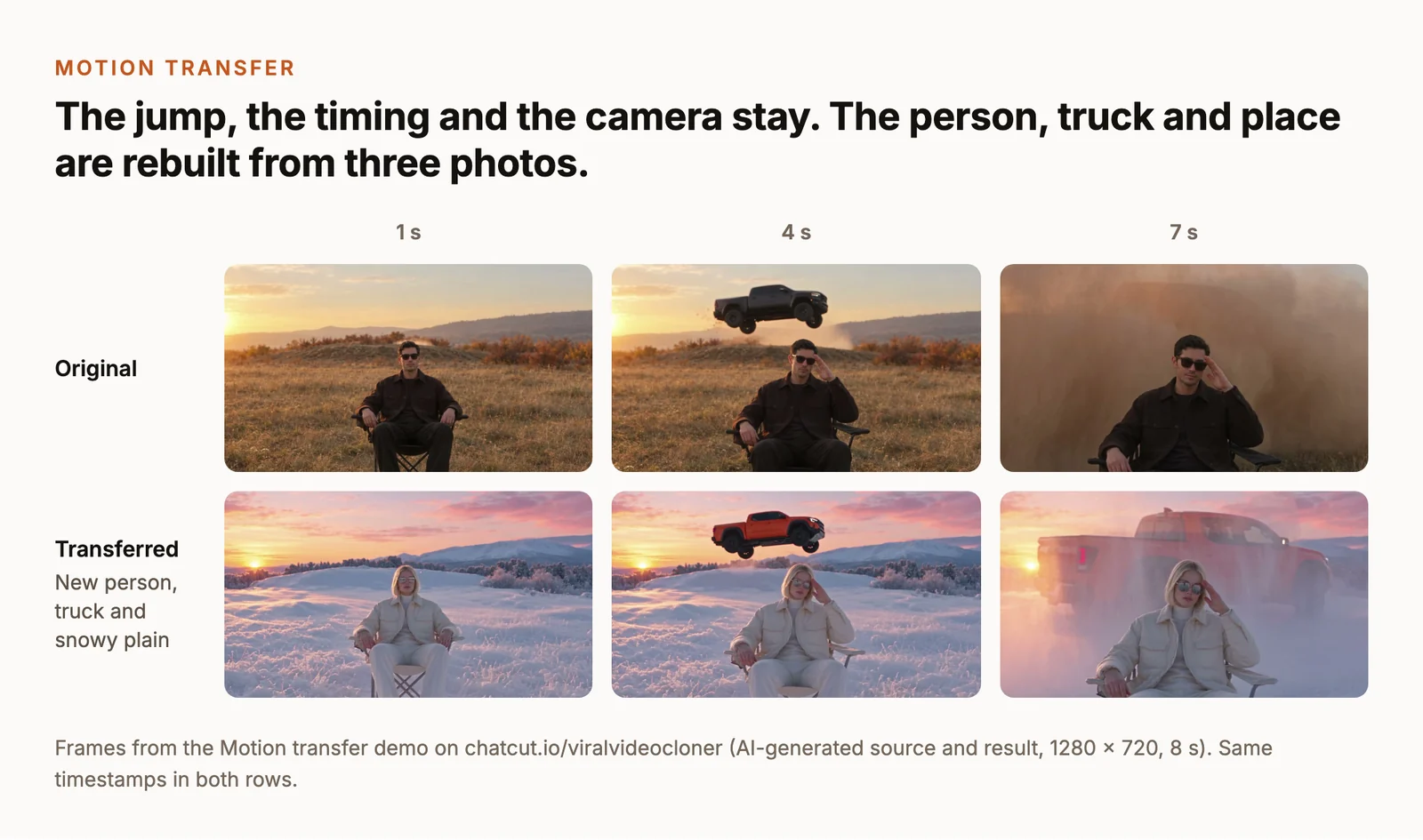
Motion transfer keeps only the movement. The whole frame is regenerated from your reference photos and description, so you can change the location (give it a photo of the place) or the visual style (give it an image in that style). People tend to look more like your reference photos than they do with object swap.
The tradeoff: anything you didn’t give a reference for, like bystanders and background details, only loosely resembles the original. Small text and logos disappear, and large text turns into garbled lettering. To remove large text, cover it with a clean frame from the same shot before you remake. A blurred box doesn’t work; the model draws the box as a real object.
Which one to pick
- Plain background or an ordinary street: motion transfer. Little is lost when the scene is redrawn, and the person will look more like you.
- A specific place, other people in frame, or text you need to keep: object swap. Redrawing would lose exactly what you want.
- A new location or a new style: only motion transfer can do it.
- Still unsure: object swap. It keeps the rest of the shot as it was.
Both modes inherit the original’s poses, outlines and sizes. Swap a lipstick held between two fingers for a large speaker, or a child for an adult, and the result looks wrong in either mode. Choose replacements close in shape and size, or choose a different reference.
One reference, several versions
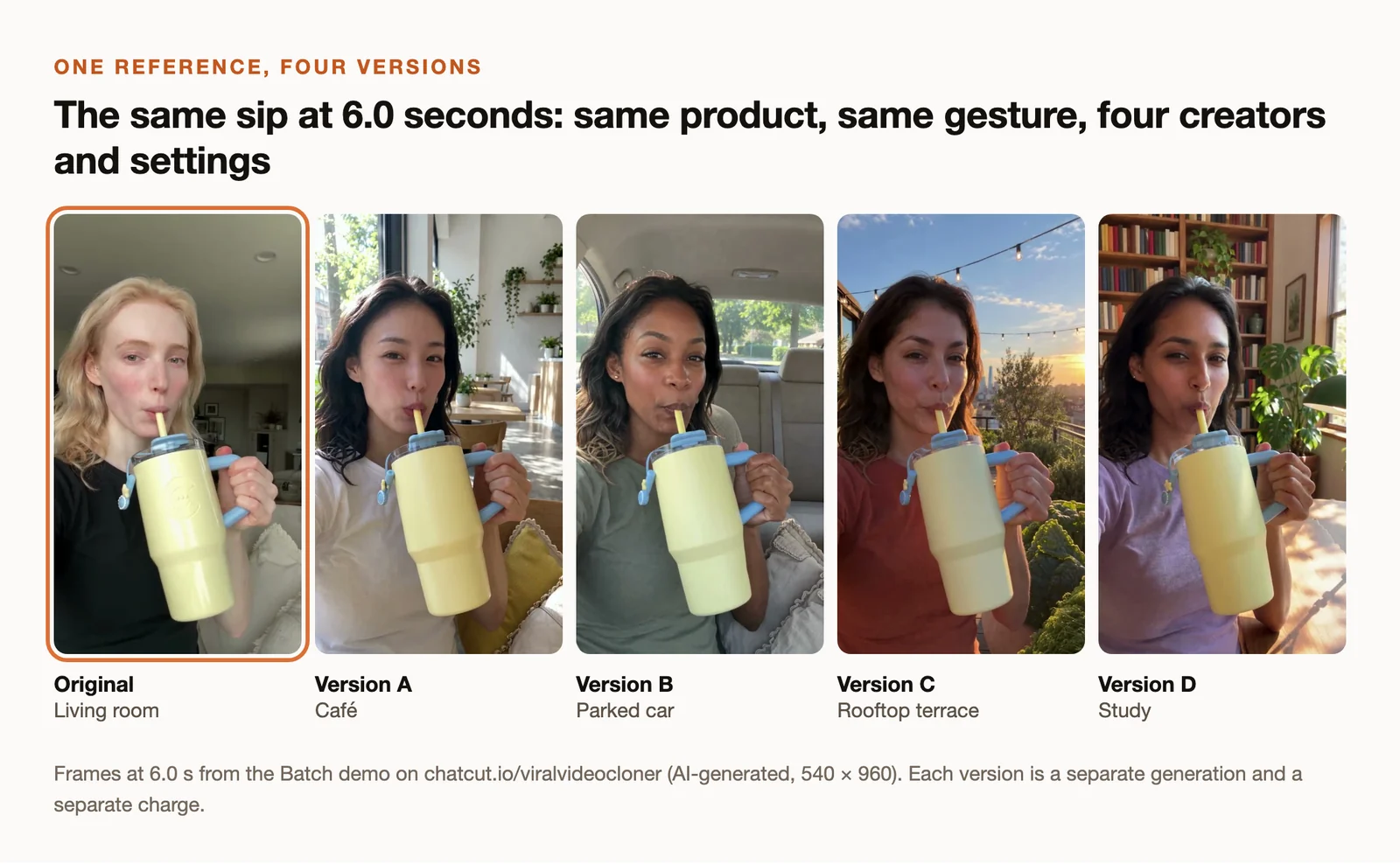
Once a reference works, you can make variations for testing: different creators, settings or products on the same proven structure. Each version is a separate generation and a separate charge, so decide what you’re testing before you make ten of them.
Practical limits in ChatCut
- Each recreation covers 4 to 30 seconds. For a longer video, the agent picks the section with the fullest action and tells you which one.
- You can add up to 6 photos per recreation: people, products, outfits or places. For a subject seen from the side or back, add a photo from that angle; with only a front view, it may be turned to face the camera.
- The remake keeps the source audio. If the source is silent, it keeps the sound the model generates.
- Remakes need a paid ChatCut plan and run in ChatCut Desktop. Before anything generates, the agent confirms the length and the estimated credits. Every rerun is charged again, so fix the cause (the shot description or the reference photo) rather than retrying unchanged.
Other tools in this category include Topview’s AI Video Clone, which rebuilds a reference’s hook, shot order and pacing around your product from an uploaded file; Higgsfield, whose motion transfer and object swap accept 4 to 30-second references; insMind’s Video Remaker; and Pippit’s Reference Video, which reuses a reference’s script and narrative.
Method 5: Restyle the Look
Video-to-video restyling keeps the motion of your own clip and changes how it looks: anime, clay, film stock, a brand palette. DomoAI’s Video to Video, for example, works from presets, text and image references.
Restyling copies an aesthetic, not a video’s structure. If the viral video you admire is a style plus an edit, combine this with method 3: restyle your footage, then copy the edit on top.
Tools at a Glance
Checked on official pages on November 4, 2026. Features and prices change; confirm on the vendor’s page before you buy.
| Tool | Method | What you give it | Worth knowing |
|---|---|---|---|
| CapCut templates | 1 | A template link and your clips | Mobile template workflow; free templates available; Pro pricing varies by region |
| Sparki Copy Style | 3 | A reference (upload or link) and your footage | Adapts pacing, transitions, captions and B-roll timing |
| Captions AI Edit | 3 | Your footage | Curated styles, not an arbitrary reference; Max is $24.99/month on iOS |
| Topview AI Video Clone | 4 | An uploaded reference and images | The clone page doesn’t accept pasted links; Plus is $36/month billed annually |
| Higgsfield | 4 | A 4–30 s reference and images | Motion transfer and object swap, batch variations |
| insMind Video Remaker | 4 | A reference and character or product images | Its FAQ says it does not copy frame by frame |
| DomoAI Video to Video | 5 | Your clip and a preset, text or image | Basic is $9/month billed annually |
| ChatCut | 3 and 4 | A link or file, plus your photos or footage | Object swap, motion transfer and edit recreation; result stays on an editable timeline; remakes need a paid plan, from $25/month |
Before You Post: A Review Checklist
Watch the result at full screen on a phone, then check:
- Identity. Does the person match your reference photo in every shot, including side and back views?
- Hands and product. Count fingers on anything held. Check the label, shape and logo of your product in the frames where it’s largest.
- Text. No garbled lettering anywhere, and captions readable at phone size.
- Timing. Does the payoff still land on the same beat as the original?
- Audio. Whose voice and whose music is this? See the next section.
- Labels. Check the platform’s rules for labeling realistic AI-generated or altered content before you publish.
Copy the Structure, Not the Material
Trends spread because formats are free to borrow: a hook pattern, a pacing, a shot type, an editing technique. The material is different. Someone else’s footage, music, voice and face aren’t yours to republish.
- Replace the audio. An AI remake keeps the source audio by default. Swap it for music you’ve licensed or your own voiceover, or add the sound from the platform’s own audio library when you post.
- Use your own people and products. Put a real person into a video only with their permission, and don’t use another brand’s product or logo in a way that suggests a connection.
- Change more than the cast. The strongest recreations keep the idea and make it unmistakably yours: your product, your setting, your line.
This isn’t legal advice. If a video is central to a paid campaign, ask someone who can give it.
How to Recreate a Video in ChatCut
- Start from your agent or the app. Send the prompt below to Claude Code or Codex, or open Viral Video Cloner under Skills in ChatCut Desktop.
- Give it the reference and your material. A link or a file for the original, plus your photos or footage, and one sentence on what should change.
- Review and finish. The agent picks the method, confirms length and credits, and puts the result in a project you can keep editing: add captions, replace the audio, trim the hook.